

Tech Support: The Process
Why support asks the questions it does—and how problems get narrowed down to a fix.
Introduction
Over the years we have worked with many computer problems ranging between Mac & PC, local & server, and cloud & application issues. Even though the specific solutions change from program to program (or hardware to hardware), the logic is the same. In this article we walk through how a problem is solved, so clients can better understand why tech support asks “redundant” questions or has you try steps that feel unrelated. We want the process to feel simple, and part of that is sharing how we work so you can report problems with confidence—and even try a few things yourself when it makes sense.
How do you solve a problem with computer technology?
To explain the process, we will use a very common and often frustrating example: printers.
“HELP! My printer isn’t working!”
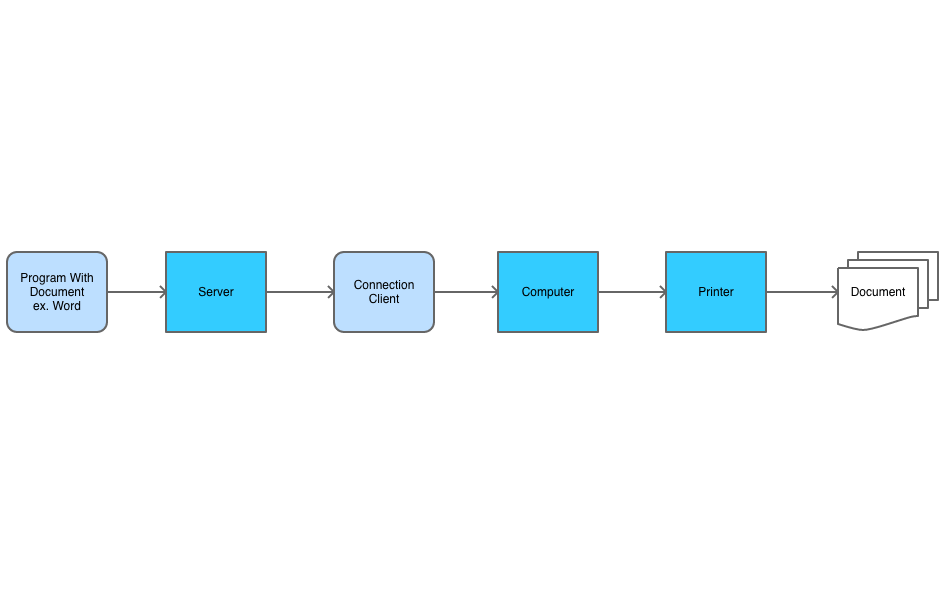
Here is the chain of parts that must all work for a successful print—going backwards from the printer to the app:
- The printer must be in working order: power on, paper loaded, and ink or toner available.
- The printer must be connected to a network that the computer can reach—Wi-Fi, Ethernet, or USB.
- The local computer must have the correct drivers and install records so the OS recognizes the printer.
- The local machine must have a way to pass print data to a remote session when you use one (e.g. Windows RDP with the right print redirection, or add-ons when required).
- The remote session, if you use one, must see the printer and have correct registry/queue entries.
- Finally, the software that creates the job (Word, a line-of-business app, etc.) must see the printer list on the environment where you print from.
When a printer will not print, the failure can be almost anywhere on that path—and sometimes more than one thing is wrong. Troubleshooting often starts broad and then narrows in.
Step 0: Search the error
Before you dive in, if the problem shows an error message, search for it. Someone may have already solved the same message and you can skip a lot of trial and error.
Step 1: Duplicate the problem
The first thing a tech needs is to see the same failure, or at least a reliable pattern. Intermittent issues are harder—you may be asked to note exactly when it happens. Duplicating the problem the same way the user does (same app, same account, same machine) keeps troubleshooting logical; skipping steps or changing variables mid-stream often wastes time.
Step 2: Isolate the problem
Whether or not the root cause is known, you can find where on the path things break—two common approaches:
Start at the end and prove what works
or
Start at the beginning and prove what doesn’t
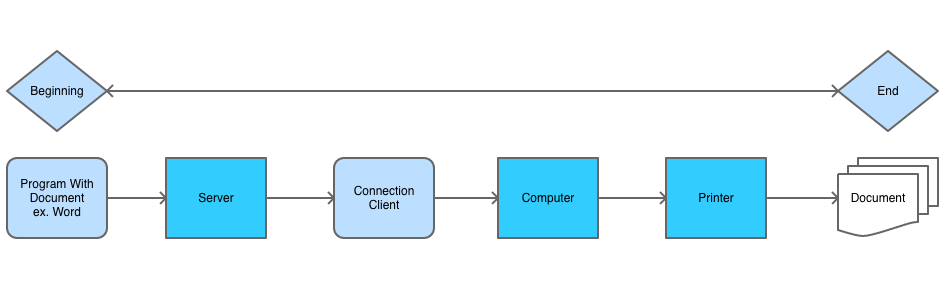
Start at the end: Check the printer, then a test print from the OS, then from another app, then from the remote session—and compare with a coworker’s account if needed. If everything works except one case, the problem is often at the beginning of that specific chain (e.g. one app or one account).
Start at the beginning: If Sage (for example) will not print, can Word print on the same server? Can another user use Sage? If not, move down the path to the local PC, then the printer.
Both methods are valid. The goal is a single broken step. Multiple failures at once get messier—but the same idea applies: narrow until one layer misbehaves.
Step 3: Replace to prove
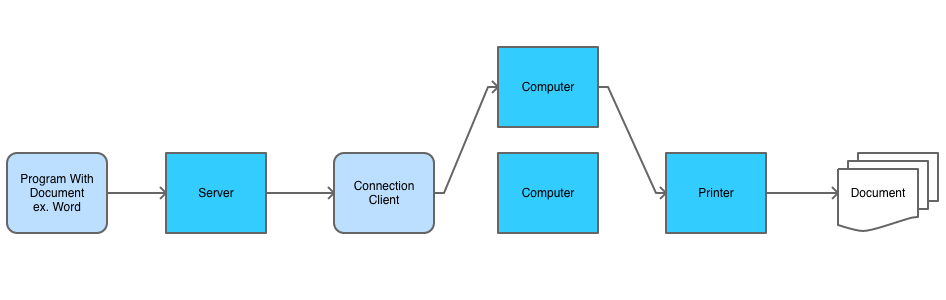
When a single step is suspect, swap or substitute to confirm: try another user, another PC, another cable, or another queue. If the problem follows the user, it may be profile or permissions; if it stays with the machine, it may be local drivers or hardware.
Step 4: Work around, fix, clean, or replace
Once the problem is isolated, the resolution depends on time, cost, and risk. Common end states:
Work around: A temporary way to get work done (a “band-aid”) when you need uptime now and can accept a non-ideal setup—for example, USB instead of network printing until a switch is fixed.
Fix: The actual cause is addressed. The issue should not return unless something new changes in the environment.
Clean: When the exact fault is hard to pin down, a broader reset (reinstall, new profile, OS repair) can still restore stable operation.
Replace: Sometimes repair cost exceeds value—new hardware or a better-supported model is the right call.
Conclusion
This is one example, but the pattern is the same in much of IT support: understand the path, eliminate what works, narrow the fault, then fix and test. Rinse and repeat until everything is back in order. For the companion piece on how to talk to support, start with Tech support: etiquette.